Python to EXE using PyInstaller + Installer with Desktop Shortcut (Kivy Guide)
bigsansar | April 29, 2026
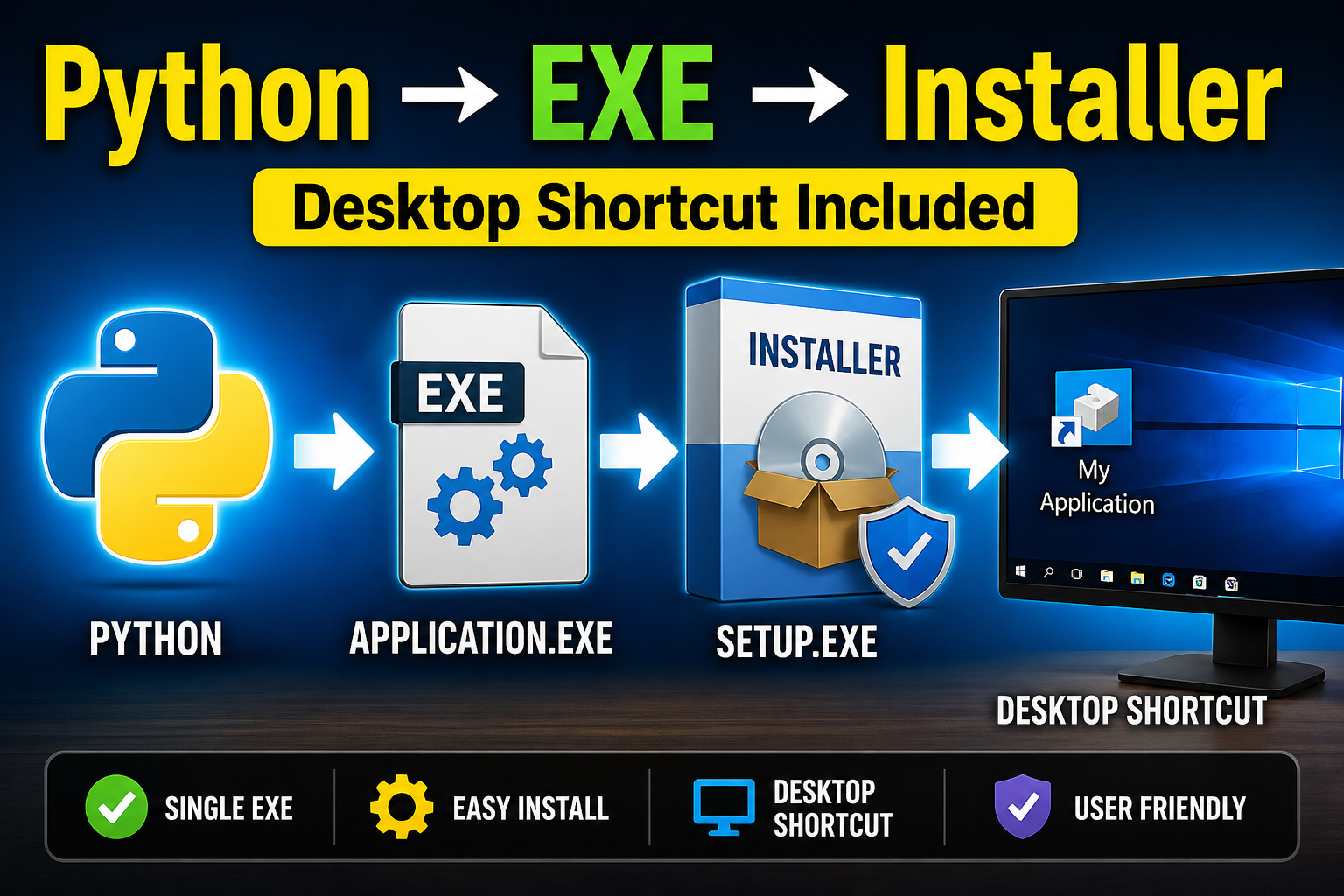
In modern development, sharing a Python application as a .py file is not practical. Most users do not have Python installed, and running scripts manually is inconvenient.
A better approach is to convert the application into an .exe file and package it with an installer so users can install and run it like any standard software.
This guide explains the complete process of converting a Python (Kivy/KivyMD) app into an executable and creating an installer with a desktop shortcut.
What is PyInstaller?
PyInstaller is a tool that converts Python scripts into standalone executable files.
Key benefits:
- The app runs without requiring Python installation
- All dependencies are bundled together
- Easy to distribute as a single file
Project Structure
Before building, organize your project properly:
Bigsansar-apps/
│
├─ main.py
├─ icon.ico
├─ kv/
├─ images/
└─ database.db (optional)
A clean structure reduces build errors and missing file issues.
Creating the EXE File
First, open Command Prompt and navigate to your project folder:
cd "C:\Users\pokhr\Documents\bigsansar projects\Bigsansar-apps"
Then run:
pyinstaller --onefile --noconsole --icon="icon.ico" main.py
Important options:
--onefile→ creates a single executable--noconsole→ hides the terminal window (for GUI apps)--icon→ sets the application icon
After the build completes, your executable will be inside the dist folder.
Fixing Common KivyMD Error
When using KivyMD, you may encounter this error:
No module named 'kivymd.icon_definitions'
Cause: PyInstaller does not automatically detect some internal modules.
Solution:
pyinstaller --onefile --noconsole ^
--hidden-import=kivymd.icon_definitions ^
--hidden-import=kivymd.icon_definitions.md_icons ^
main.py
This fix is essential for KivyMD apps and works in most cases.
Understanding the main.spec File
PyInstaller generates a .spec file that controls how the executable is built.
It is used to:
- Set the application icon
- Add hidden imports
- Include extra files (images, KV files, database)
Important limitation:
- It does NOT create desktop shortcuts
- It only controls how the EXE is built
Why You Need an Installer
If you distribute only the .exe file:
- Users must run it manually
- No desktop shortcut is created
- It feels less professional
Using an installer solves these issues:
Benefits of an installer:
- Automatic installation
- Desktop shortcut creation
- Better user experience
- Professional distribution
Creating an Installer (Using Inno Setup)
Inno Setup is a popular tool for creating Windows installers.
Steps:
- Install Inno Setup
- Open “New Script Wizard”
- Enter application details (name, version)
- Add your
dist\main.exefile - Enable “Create Desktop shortcut.”
- Compile the installer
After compiling, you will get a setup .exe file.
Practical Example
Here is a simple KivyMD application:
from kivymd.app import MDApp
from kivymd.uix.label import MDLabel

class MyApp(MDApp):
    def build(self):
        return MDLabel(text="Hello Bigsansar!", halign="center")

MyApp().run()
Build it using:
pyinstaller --onefile --noconsole ^
--hidden-import=kivymd.icon_definitions ^
--hidden-import=kivymd.icon_definitions.md_icons ^
--icon="icon.ico" main.py
Result:
- EXE file is created in
dist/ - Use Inno Setup to create an installer
- The installer installs the app and creates a desktop shortcut
Important Tips
Use Python 3.10 or 3.11 for best compatibility with PyInstaller
Python 3.13 may cause issues with some libraries
Always include required files
- KV files
- Images
- Database files
Clean old builds before rebuilding
- Delete
build/,dist/, and.specfiles
Use a proper .ico file
- Multi-size (16, 32, 48, 256)
- Ensures sharp icon display
To distribute a Python application professionally:
Python script → PyInstaller → EXE
EXE → Inno Setup → Installer with Desktop Shortcut
This process transforms a simple Python project into a fully installable desktop application that behaves like standard Windows software.
0 COMMENTS:
Python to EXE using PyInstaller + Installer with Desktop Shortcut (Kivy Guide)
Learn how to convert a Python (Kivy/KivyMD) app into a standalone EXE using PyInstaller and create …
Python Class and Object Explained | OOP Concepts in Python for Beginners
Learn Python Class and Object in simple terms with real-life examples. Understand OOP concepts like…
Create Command Line Utility in Python | Beginner CLI Tutorial (Argparse & Sys.argv)
Learn how to create a Command Line Utility in Python step-by-step. This beginner-friendly guide exp…
Argparse Subparsers Python Guide – Create CLI Subcommands with Examples
Learn how to create subcommands in Python using argparse subparsers. This complete guide covers con…
Python Packaging Explained: setup.py vs pyproject.toml (Modern Guide 2026)
Learn Python packaging from setup.py to modern pyproject.toml. Understand differences, best practic…
Build a Web Framework in Python from Scratch | Complete Guide
Learn how to build a web framework in Python from scratch using WSGI. Understand routing, request h…